
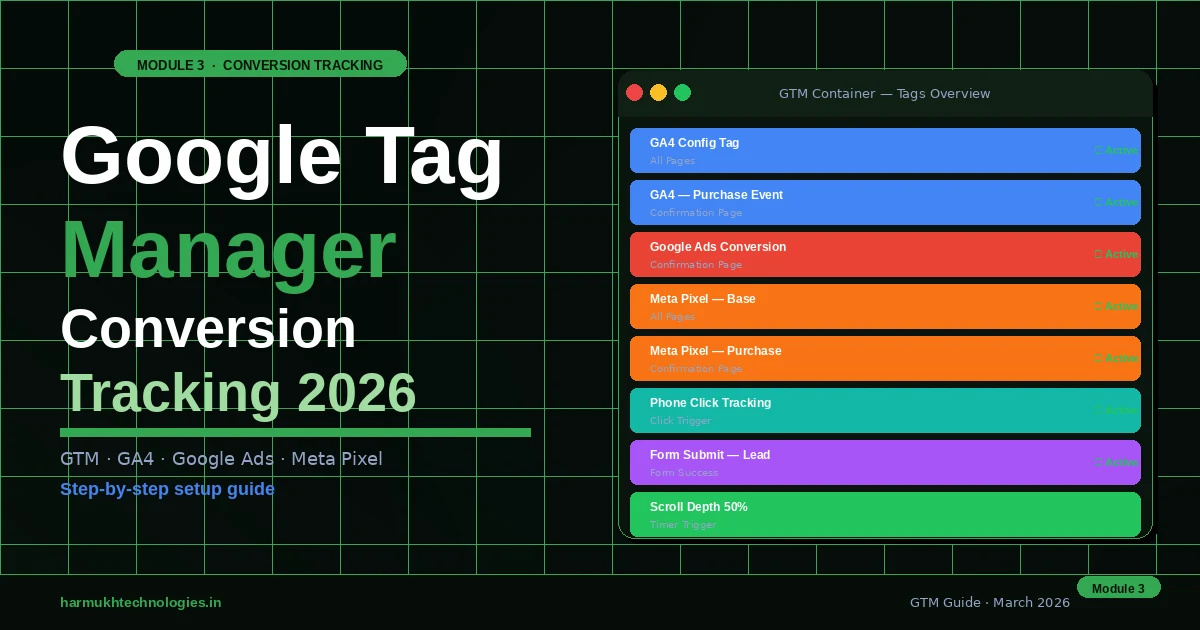
Without accurate conversion tracking, every bidding strategy decision, every budget allocation, and every performance report in your Google Ads account is built on guesswork. GTM is the tool that makes conversion tracking manageable — one container, all your tags, no developer required for most implementations. This guide walks through the full setup from scratch.
Google Tag Manager is one of those tools that marketers either set up correctly once and forget about, or set up incorrectly and spend months wondering why their smart bidding campaigns are not performing. The difference between the two outcomes is almost always the same: whether the conversion data flowing into Google Ads is accurate, deduplicated, and matched to the right conversion events. Bad tracking data fed into a tCPA or tROAS campaign does not produce bad performance slowly — it produces it immediately and consistently.
This guide covers the full GTM setup for a marketing campaign stack: Google Analytics 4, Google Ads conversion tracking, and Meta Pixel — all managed through a single GTM container. For the Google Ads bidding strategies that depend on this conversion data to function correctly, see our Google Ads Bidding Strategies guide. For the full Google Ads Search foundation, our complete Google Ads Search guide covers the campaign structure this tracking sits within.
What This Guide Covers
- What is Google Tag Manager and why use it?
- GTM account structure: containers, workspaces, tags
- Installing GTM on your website
- Setting up GA4 tracking through GTM
- Setting up Google Ads conversion tracking
- Adding Meta Pixel through GTM
- Triggers: when your tags fire
- Testing and verifying your tracking setup
- Conversion tracking checklist
- Common GTM mistakes and how to fix them
- Frequently asked questions
Why Conversion Tracking Accuracy Determines Campaign Performance
Smart bidding strategies — Target CPA, Target ROAS, Maximise Conversions — are not algorithms that independently discover what works. They are pattern-recognition systems that learn from the conversion signals you give them. Feed them accurate conversion data and they optimise effectively. Feed them inaccurate data — duplicate tags counting the same conversion twice, wrong conversion events, static values instead of dynamic transaction values — and they optimise toward a distorted signal, producing results that look like strategy failure but are actually tracking failure.

In Harmukh Technologies client account audits, conversion tracking errors are the most common cause of unexplained smart bidding underperformance. Duplicate conversion tags are found in approximately 40% of accounts that have never had a formal GTM audit. The most common symptom: a tCPA campaign with a reported CPA of ₹200 that, after deduplication, is actually ₹400 — meaning the algorithm has been bidding aggressively for conversions it believes cost half what they actually cost. Fixing the tracking, without changing any other campaign setting, typically reduces wasted spend by 20–35% within the first month.
Part of Harmukh Technologies Mentorship — Module 3: GTM setup and conversion tracking is taught in Module 3 of our 1-on-1 Digital Marketing Mentorship. Students configure live GTM containers on real client websites during the programme, with mentor review of every tag and trigger configuration before any campaign spend begins.
What is Google Tag Manager and Why Use It?
Google Tag Manager is a free tag management system that lets you deploy and manage marketing and analytics code snippets — called tags — on your website without editing the website’s source code directly. Instead of asking a developer to add a new tracking pixel every time you launch a new campaign, you add one piece of GTM code to your website once, and then manage all subsequent tags through the GTM interface.
For marketing teams managing multiple tracking tools — Google Analytics, Google Ads conversion tracking, Meta Pixel, LinkedIn Insight Tag, Hotjar, and others — GTM is the single container that holds and manages all of them. Every tag fires from the same container, every trigger is managed in one place, and every change is versioned and reversible. If a tag causes a website problem, you can roll back to the previous container version in seconds without touching the website code.

The practical benefit for Google Ads campaigns specifically is that GTM enables dynamic conversion value passing — the ability to send the actual transaction value (₹1,450 for this order, ₹6,800 for that order) to Google Ads rather than a static placeholder value. Dynamic values are essential for Target ROAS campaigns to function correctly. Without them, the algorithm treats every conversion as equal regardless of its revenue, which produces systematically incorrect bidding decisions at scale. For a full breakdown of how bidding strategies use this data, see our Google Ads Bidding Strategies guide.
GTM Account Structure: Containers, Workspaces, Tags
Understanding GTM’s hierarchy before you start prevents most of the structural errors that cause problems later. GTM has four levels: Account, Container, Workspace, and the tags/triggers/variables that live within a workspace.
Account
One GTM Account per company or agency. If you are an agency managing multiple clients, create one account per client — not one account with multiple containers for all clients. Separating client accounts prevents accidental cross-publishing and keeps permissions clean. Account-level access in GTM gives access to all containers within that account, so mixing clients in a single account creates unnecessary permission complexity.
Container
One Container per website (or app). The container is the code snippet you install on your website — a small JavaScript snippet in the <head> and a <noscript> snippet in the <body>. All tags you create in GTM fire through this container. If you manage a main domain and a separate subdomain (for example, a checkout subdomain), each needs its own container. Containers are identified by their GTM-XXXXXXX ID, which appears in the snippet code.
Workspace
Workspaces allow multiple people to work on tag changes simultaneously without overwriting each other. The Default Workspace is sufficient for most single-marketer setups. For agency environments or larger teams, create separate workspaces for active development, staging, and production changes. Changes made in a workspace do not go live until that workspace is published — which creates an important safety layer between tag configuration and live site deployment.
Tags, Triggers, and Variables
Tags are the actual tracking snippets — the GA4 Config tag, the Google Ads Conversion tag, the Meta Pixel code. Each tag is configured with what data to send and where to send it. Triggers define when each tag fires — on every pageview, on a specific button click, on form submission, on purchase confirmation. Variables are dynamic data values the tags use — the transaction ID, the order value, the product category. Together, these three elements define the full tracking behaviour for every event on your website.
Installing GTM on Your Website
Installing GTM correctly is the prerequisite for everything else in this guide. An incorrectly installed container — firing twice, missing from certain page templates, or blocked by a cookie consent tool — will produce inconsistent data that is worse than no data, because it looks plausible while being inaccurate.

- Create your GTM account and container. Go to tagmanager.google.com. Create a new Account (company name) and Container (website URL). Select “Web” as the container type. GTM will generate your container snippet immediately.
- Install the head snippet. Copy the
<script>snippet and paste it as high as possible in the<head>section of every page on your website. In WordPress, this goes in your theme’s header.php or via a plugin like Insert Headers and Footers. In Shopify, it goes in the theme.liquid file. - Install the body snippet. Copy the
<noscript>snippet and paste it immediately after the opening<body>tag on every page. This ensures tracking fires for users with JavaScript disabled. - Verify installation with Tag Assistant. Install the Google Tag Assistant Chrome extension. Visit your website and check that GTM is detected with a green status. A yellow status indicates a partial installation — typically the body snippet is missing.
- Check cookie consent integration. If your website uses a cookie consent tool (CookieYes, OneTrust, Cookiebot), configure it to block GTM tags until consent is given for analytics and marketing cookies. Firing tracking tags before consent is obtained is a GDPR compliance issue in EU markets and increasingly in Indian markets as well.
Setting Up GA4 Tracking Through GTM
GA4 (Google Analytics 4) is the analytics foundation that every other tracking tool in this guide depends on for audience building, cross-channel attribution, and conversion verification. Setting it up through GTM rather than direct code installation gives you full control over which events fire, what data they carry, and when they trigger.

Step 1: Create your GA4 property and get your Measurement ID
In Google Analytics, go to Admin → Create Property → select GA4. Complete the property setup and navigate to Admin → Data Streams → Web → your stream. Copy your Measurement ID — it begins with G- followed by a string of letters and numbers. This is what you will enter in your GTM tag configuration.
Step 2: Create the GA4 Configuration Tag in GTM
In GTM, go to Tags → New → Tag Configuration → Google Analytics: GA4 Configuration. Enter your Measurement ID (G-XXXXXXXXXX). Set the trigger to “All Pages” — this fires the base GA4 tracking code on every page load, which establishes the session, the user ID, and the page context that all subsequent GA4 events will be attributed to. Name the tag clearly: “GA4 — Config — All Pages.” Publish the container.
Step 3: Set up GA4 event tags for key actions
GA4 automatically tracks some events (page views, scrolls, outbound clicks) through the Configuration tag. For marketing-specific events — form submissions, button clicks, purchase completions — you need to create separate GA4 Event tags. Each event tag requires: an Event Name (use GA4’s recommended event names where possible — “generate_lead,” “purchase,” “add_to_cart”), the relevant Event Parameters (for purchase: transaction_id, value, currency, items), and a trigger that fires the tag at the correct moment.
For purchase events, the event tag must pass the actual transaction value dynamically. In GTM, create a Data Layer Variable for the transaction value (configured in your website’s code to push the order total to the data layer on the confirmation page), then reference that variable in the GA4 Event tag’s “value” parameter. This dynamic value is what makes tROAS bidding accurate — without it, GA4 reports every purchase as the same value. To understand exactly how tROAS uses these signals, see our Google Ads Bidding Strategies guide.
Setting Up Google Ads Conversion Tracking
Google Ads conversion tracking is separate from GA4 tracking, even though you can import GA4 goals into Google Ads. For smart bidding campaigns — tCPA, tROAS, Maximise Conversions — native Google Ads conversion tags (deployed through GTM) produce more reliable bidding signals than GA4-imported goals, because native tags fire directly to the Google Ads system without the attribution delay introduced by the GA4 import process.

Creating the conversion action in Google Ads
In Google Ads, go to Tools → Conversions → New Conversion Action → Website. Select your conversion category (Purchase, Lead, etc.). Set the conversion value: for e-commerce, select “Use different values for each conversion” and note the variable names Google Ads expects (google_conversion_value, google_conversion_currency). Set the conversion window to match your sales cycle — 30 days for most lead generation, 7–14 days for e-commerce with shorter consideration periods. Set “Include in Conversions” to Yes for the primary conversion action that will drive smart bidding.
Creating the Google Ads conversion tag in GTM
In GTM, go to Tags → New → Tag Configuration → Google Ads Conversion Tracking. Enter your Conversion ID and Conversion Label from the Google Ads conversion action you just created. For e-commerce, map the Conversion Value field to your Data Layer Variable containing the transaction total, and set the Currency field to INR (or your relevant currency). Set the trigger to your purchase confirmation page trigger. Name the tag: “Google Ads — Purchase Conversion — [Campaign Name].”
Avoid: one conversion tag for all campaigns. If you run campaigns with different objectives — one for leads, one for purchases — create separate conversion actions and separate GTM tags for each. Combining lead and purchase conversions into a single conversion action destroys the CPA signal accuracy for both campaign types, because the algorithm cannot distinguish between a ₹200 lead and a ₹5,000 purchase when they are counted as the same conversion event. For the full campaign structure context, see our Google Ads Search Campaigns guide.
Adding Meta Pixel Through GTM
The Meta Pixel can be deployed through GTM, which keeps all your marketing tags in one managed environment rather than having direct-code implementations scattered across your website. The GTM-deployed Pixel consists of two components: the Base Code tag (fires on all pages) and Standard Event tags (fire on specific actions).

Meta Pixel Base Code tag
In GTM, go to Tags → New → Tag Configuration → Custom HTML. Paste your Meta Pixel base code (from Meta Events Manager → Data Sources → your Pixel → Setup). Set the trigger to “All Pages — DOM Ready” rather than “All Pages — Page View” — DOM Ready fires slightly later in the page load sequence, which reduces conflicts with cookie consent tools. Name the tag: “Meta Pixel — Base Code — All Pages.”
Meta Standard Event tags
Create separate GTM tags for each Meta Standard Event you need to track: ViewContent (product page views), AddToCart, InitiateCheckout, Lead (form submissions), and Purchase. Each Standard Event tag is a Custom HTML tag containing the fbq('track', 'EventName', parameters) call. For the Purchase event, pass the value and currency parameters dynamically using the same Data Layer Variables you created for the GA4 and Google Ads tags. Each event tag gets its own specific trigger — the Purchase event fires only on the order confirmation page, not on all pages.
Meta CAPI (Conversions API): For markets where browser-based tracking is unreliable due to ad blockers or iOS privacy restrictions, Meta’s Conversions API sends server-side conversion signals directly from your server to Meta — bypassing browser limitations entirely. CAPI implementation requires developer involvement and is covered in the Meta Ads module. For a broader view of how tracking integrates with performance marketing campaign setup, see our full performance marketing guide.
Triggers: When Your Tags Fire
Triggers are the conditions that tell each tag when to fire. Getting triggers right is where most GTM setup errors occur — tags firing too broadly (on every page instead of just the confirmation page), not firing at all (trigger condition not matched), or firing multiple times for a single conversion event (producing duplicate conversions in Google Ads).

Pageview triggers
Use “All Pages” pageview triggers for your GA4 Config tag and Meta Pixel Base Code — tags that should fire on every page load without condition. For conversion tags that should fire only on specific pages (purchase confirmation, thank you page, form success page), use a “Page View” trigger with a URL condition: “Page URL contains /order-confirmation” or “Page URL equals https://yoursite.com/thank-you.” Never use an All Pages trigger for a conversion tag — this will fire the conversion event on every page load and inflate your conversion count by 10–50× depending on your average session page count.
Click triggers
Click triggers fire when a user clicks a specified element. Use them for tracking CTA button clicks, phone number clicks (which are high-intent signals for service businesses), and outbound link clicks to booking systems or external landing pages. In GTM, enable the built-in “Click Classes” and “Click ID” variables, then create a Click trigger with the condition “Click Classes contains cta-button” (replacing with your actual button class). Test using GTM Preview Mode — click the element and confirm the trigger fires in the preview panel before publishing.
Form submission triggers
Form submission triggers fire when a form is submitted successfully. In GTM, use the “Form Submission” trigger type and enable “Wait for Tags” (delays the form submission by 500ms to ensure tags fire before the page navigates away) and “Check Validation” (only fires if the form passes HTML5 validation, preventing conversion tags from firing on failed submission attempts). If your form redirects to a thank-you URL on success, a Page View trigger on the thank-you URL is more reliable than a Form Submission trigger and avoids the timing issues associated with single-page application form handlers.
Custom Event triggers (Data Layer)
For e-commerce sites and single-page applications, the most reliable conversion trigger method is a Data Layer push from the website’s code. When a purchase is completed, the site pushes an event to the Data Layer — dataLayer.push({event: 'purchase', transactionId: '12345', value: 4500, currency: 'INR'}). A GTM Custom Event trigger listens for this specific event name and fires the conversion tag when it is detected. This method is more reliable than URL-based triggers for dynamic confirmation pages and passes transaction data cleanly to the conversion tag without scraping it from the page DOM.
Testing and Verifying Your Tracking Setup
Never publish a GTM container to a live site without testing every tag and trigger first. A conversion tag that fires incorrectly on a live campaign will corrupt the smart bidding data for weeks — the window it takes for the algorithm to accumulate enough inaccurate signal to meaningfully distort its bidding behaviour. Testing takes 30–60 minutes. Fixing a corrupted smart bidding dataset takes 4–6 weeks.

GTM Preview Mode
GTM Preview Mode is the first testing tool to use before publishing any container change. In GTM, click the Preview button — this opens a debug connection to your website in a new tab. As you browse your site, the Preview panel shows every tag that fires on each page and each interaction, the trigger that caused it to fire, and the variables available at the time of firing. Complete a test purchase or form submission and confirm that your conversion tags appear in the “Tags Fired” section exactly once. If a conversion tag appears in “Tags Not Fired,” the trigger condition is not being met. If it appears multiple times, the trigger is too broad.
GA4 DebugView
After confirming tags fire in GTM Preview Mode, verify that the data is arriving correctly in GA4. In GA4, go to Admin → DebugView. In your browser, add the URL parameter ?gtm_debug=x to your website URL — this activates debug mode and shows your session as a live stream in DebugView. Complete a test conversion and confirm the event appears in DebugView with the correct parameters: event name, value, currency, transaction_id. If the purchase event appears but the value is 0 or undefined, the Data Layer Variable mapping is incorrect — the variable name in GTM does not match the variable name being pushed by the website code.
Google Ads Tag Verification
In Google Ads, go to Tools → Conversions → your conversion action → Tag details. Google Ads will show a verification status: “Recording conversions” (tag firing correctly and data received), “Tag inactive” (tag not yet fired since setup), or “No recent conversions” (tag installed but no conversions recorded in the last 7 days). Complete a test conversion using a real or test transaction and check this status updates within 24 hours. For immediate verification, use the Google Tag Assistant Chrome extension — it shows real-time tag firing status and will identify configuration errors in the tag setup.
Conversion Tracking Checklist
Before launching any paid campaign — 10-point conversion tracking checklist:
- GTM container snippet installed in both
<head>and<body>on all pages - GA4 Config tag firing on all pages — verified in GTM Preview and GA4 DebugView
- Google Ads conversion tag verified — “Recording conversions” status in Google Ads
- Meta Pixel firing — Events Manager shows recent activity with correct event names
- Purchase / Lead event passing dynamic value (not static placeholder)
- Conversion window set to match actual sales cycle length
- No duplicate conversion tags in the container — check for old hardcoded tags in the website source
- Google Ads account linked to GA4 property in both platforms
- Test conversion verified end-to-end in GA4 DebugView and Google Ads Tag Assistant
- Smart bidding campaign NOT activated until 30+ verified conversions per month
If you need help running through this checklist on your live account, the Harmukh Technologies team conducts full GTM audits as part of campaign onboarding. You can also learn to run these audits yourself through the 1-on-1 Digital Marketing Mentorship.
Common GTM Mistakes and How to Fix Them

Duplicate conversion tags inflating conversion counts
The most damaging GTM mistake: a Google Ads conversion tag deployed through GTM and an old hardcoded Google Ads conversion snippet still present in the website’s source code, both firing on every purchase. The result is every conversion being counted twice — which halves the reported CPA and causes Google’s smart bidding algorithm to bid aggressively based on a CPA target it can never actually achieve. Before deploying any GTM conversion tag, check the website’s source code for existing conversion snippets and remove them. In WordPress, check theme files, plugin settings, and any header/footer injection plugins for existing Google Ads, GA4, or Meta Pixel code.
All Pages trigger on a conversion tag
Setting an All Pages trigger on a conversion tag is the second most common error in GTM setups from non-specialist configurations. The conversion tag fires on every page load — meaning every session produces multiple “conversions” before the user has taken any action. The result is an account showing thousands of conversions with a CPA of ₹2–5, which looks excellent until you realise none of the reported conversions represent real business outcomes. Always use a specific URL-based trigger or a Data Layer Custom Event trigger for conversion tags — never All Pages.
Static conversion values for tROAS campaigns
Setting a static conversion value (for example, always ₹500 regardless of actual transaction value) on a Google Ads conversion tag that is being used to drive a tROAS campaign is one of the most common reasons tROAS campaigns underperform. The algorithm believes every conversion is worth ₹500 and bids accordingly — which means it underbids on ₹5,000 transactions and overbids on ₹200 transactions. Dynamic values, passed through Data Layer Variables, are not optional for tROAS campaigns — they are the prerequisite for the strategy to function as designed. For more on how tROAS uses conversion value signals, see our Google Ads Bidding Strategies guide.
Not testing after website updates
Website updates — theme changes, checkout platform migrations, new page builders, URL structure changes — frequently break GTM triggers silently. A URL-based trigger that fires on “/order-confirmation” stops working when the checkout platform is updated and the confirmation page URL changes to “/checkout/success.” Set a calendar reminder to run a full GTM audit — Preview Mode test of all conversion triggers — every time a significant website update is deployed, and immediately before any campaign launch.
Frequently Asked Questions About Google Tag Manager Conversion Tracking
Do I need Google Tag Manager or can I install tracking codes directly?
You can install tracking codes directly in your website’s source code without GTM — the tracking will function. The reasons to use GTM instead are: speed of deployment (add new tags without a developer), version control (every container change is logged and reversible), reduced developer dependency for ongoing campaign management, and the ability to pass dynamic data (transaction values, product details) to multiple platforms from a single Data Layer implementation. For single-platform implementations on simple websites, direct installation is acceptable. For multi-platform tracking with dynamic values — the setup required for accurate tCPA and tROAS campaigns — GTM is the correct tool. For a broader picture of the campaign ecosystem, see our Performance Marketing Campaign Setup Guide.
What is the difference between a GA4 goal and a Google Ads conversion action?
A GA4 goal (now called a “Key Event” in GA4) is an analytics measurement — it tells you how many users completed a specific action on your website. A Google Ads conversion action is a bidding signal — it tells Google Ads how to optimise campaign bids to produce more of that action. You can import GA4 Key Events into Google Ads as conversion actions, but for smart bidding campaigns, native Google Ads conversion tags (deployed through GTM) produce more accurate and faster bidding signals than imported GA4 goals because they fire directly to the Google Ads system without the attribution delay of the import process.
How long does it take for Google Ads to verify a conversion tag?
After the first conversion fires through a newly installed tag, Google Ads typically shows “Recording conversions” status within 24 hours. The conversion data itself appears in your Google Ads reports within 3 hours of firing. If your conversion action has a long conversion window (30 days), some conversions will appear in the account weeks after the click that initiated them — this is expected behaviour, not a tracking delay. Use Tag Assistant to get immediate verification of whether the tag is installed and firing correctly, independent of when Google Ads processes and displays the conversion data.
Can I use GTM on Shopify?
Yes — GTM can be installed on Shopify by adding the container snippets to the theme.liquid file (head snippet in the <head> section, body snippet after the opening <body> tag). For the purchase conversion tag, Shopify’s checkout thank-you page requires the Additional Scripts section in Shopify Admin → Settings → Checkout for the GTM body snippet, because Shopify’s checkout is hosted on a separate domain (checkout.shopify.com). The Additional Scripts section is the correct place to insert the GTM snippet for conversion tracking on the Shopify order confirmation page.
Should I use one GTM container for Google Ads and Meta Pixel?
Yes — managing all marketing tags through a single GTM container is the recommended approach. It centralises tag management, reduces the number of third-party scripts loading directly on your website (improving page load speed), and allows you to apply consistent trigger logic across all platforms. The Data Layer push for a purchase event can simultaneously trigger your GA4 tag, your Google Ads conversion tag, and your Meta Pixel Purchase event from a single container publish — rather than maintaining separate code implementations for each platform that can drift out of sync when the website changes.
Conversion Tracking: The Foundation Everything Else Depends On
Every optimisation decision in a paid search or paid social campaign — bidding strategy, audience targeting, creative rotation, budget allocation — is only as good as the conversion data informing it. GTM, configured correctly with dynamic values and clean, deduplicated triggers, is what makes that data reliable. The 30–60 minutes required to set up and verify a GTM container correctly is the highest-ROI time investment in campaign management — the one that determines whether all subsequent optimisation is building on accurate signal or compounding a systematic measurement error.
For the Google Ads bidding strategies that this conversion data feeds directly into, see our Google Ads Bidding Strategies guide. To understand how search campaigns are structured around these conversion signals, visit our complete Google Ads Search guide. If you’d rather have a Kashmir-based digital marketing agency handle your tracking setup and campaign management end-to-end, get in touch.
You may also want to explore:
- Meta Ads Course Guide 2026 — for the paid social side of your tracking stack
- Meta Ads Metrics List — the key Meta metrics your GTM-tracked events feed into
- Digital Marketing Roadmap 2026 — where GTM and conversion tracking fit in the full marketing stack
- GEO vs SEO: Optimising for AI Search in 2026 — the organic counterpart to your paid strategy
Want GTM set up correctly on your campaigns from day one? Module 3 of the Harmukh Technologies Digital Marketing Mentorship covers GTM setup, Google Ads conversion tracking, and smart bidding implementation — taught on real client accounts with mentor review of every tag configuration before any campaign spend begins. View the mentorship curriculum · Bidding strategies guide · Google Ads complete guide · Get in touch